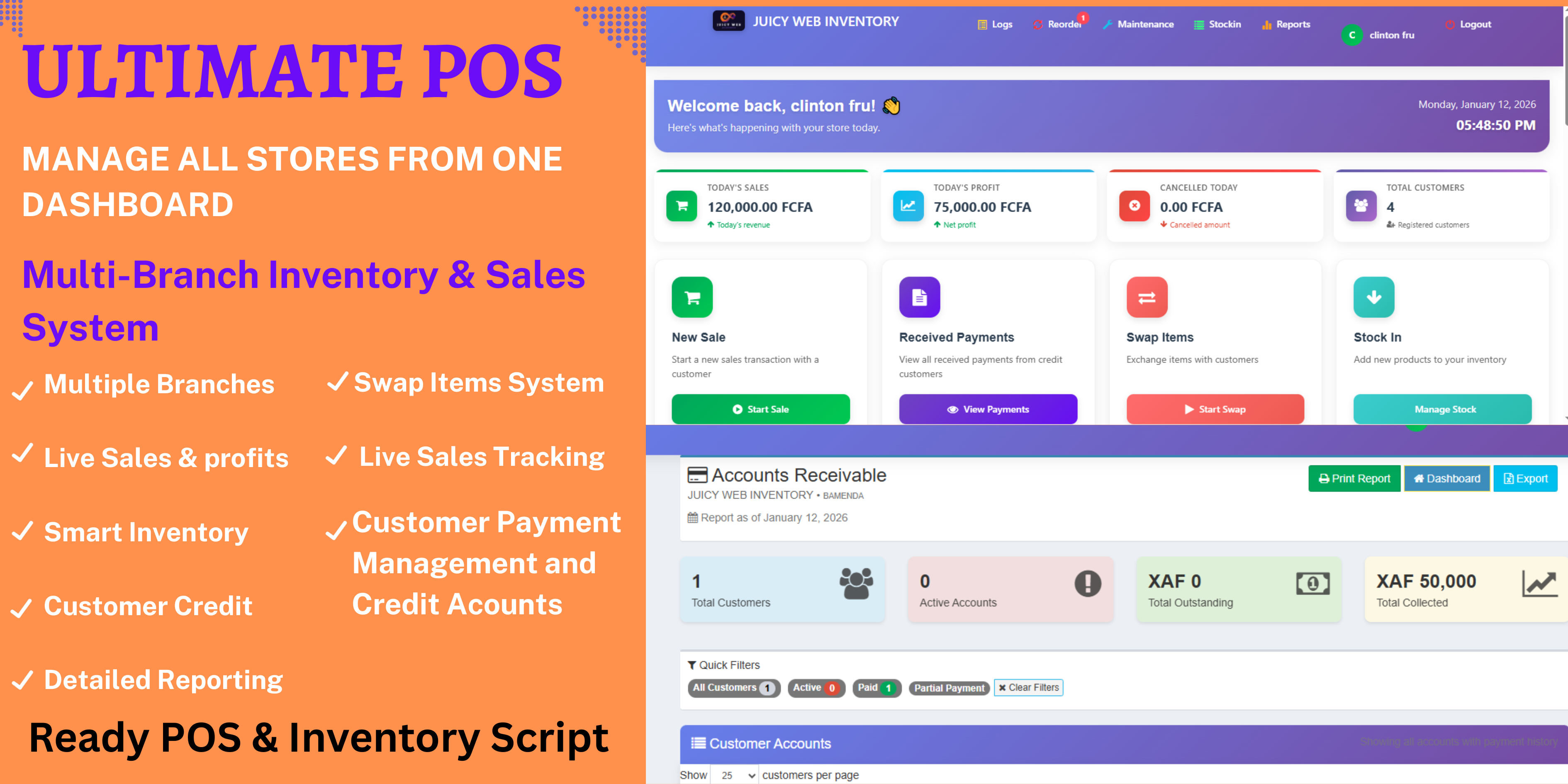
Welcome to UltimatePOS
UltimatePOS is a comprehensive PHP/MySQL inventory and sales management system designed for businesses of all sizes. Whether you operate a single store or manage multiple locations, this system provides complete operational control from one unified dashboard.
Multi-Branch Ready
Manage unlimited locations from a single system
Real-time Analytics
Live sales tracking and business insights
Secure & Reliable
Enterprise-level security with regular backups
Fully Responsive
Works on desktop, tablet, and mobile devices
System Login Access Points
UltimatePOS has separate login systems for different user types:
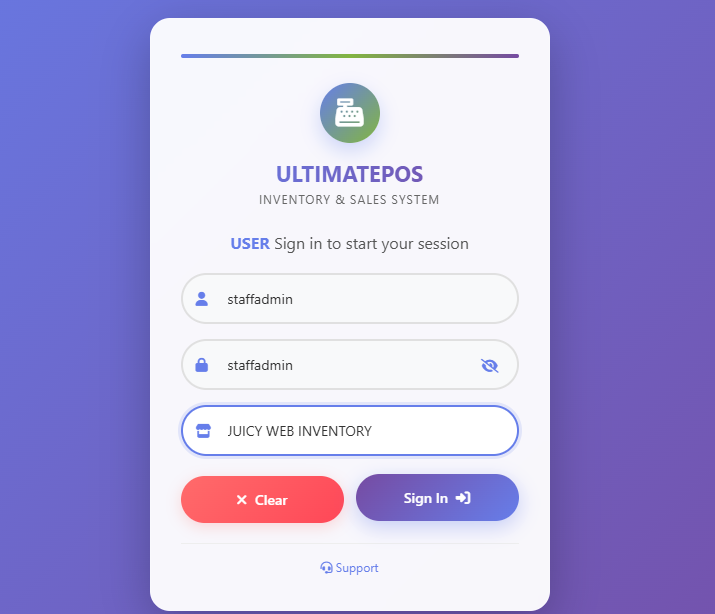
Daily Operations Login
For Staff Admin and Normal Users
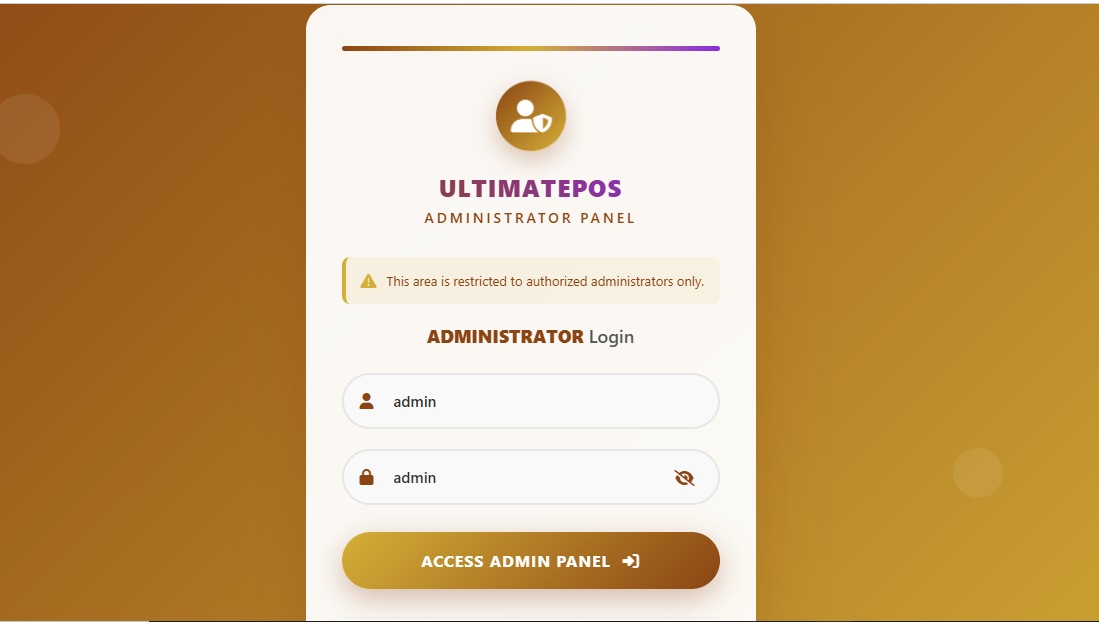
Admin Panel Login
For Super Admin only
Manual Focus
This user manual covers Daily Operations only (left side). All instructions, screenshots, and guides in this document are for Staff Admin and Normal User functions.
Daily Operations Login Details
For daily business operations, staff and normal users login through the main system interface:
Default Login Credentials:
Login URL: yourdomain.com/stocksys
Default Staff Admin: staffadmin / staffadmin
Note: Normal users will have accounts created by Super Admin
Login Security Tips
- Never share your login credentials
- Change default passwords after first login
- Log out after each session, especially on shared computers
- Report any suspicious activity to Super Admin immediately
User Roles & Permissions (Daily Operations)
Understanding user roles is crucial for proper system access and operations:
Staff Admin (Extended Access)
This role has significant privileges for daily business operations management:
- Process sales transactions
- View reports, profits, and system logs
- Cancel sales and swap items
- Stock in/out operations
- Product catalog management
- Customer credit management
- Receive customer payments
Normal User (Basic Sales Access)
This role is designed for sales staff with limited system access:
- Process sales transactions only
- Generate basic sales reports
- Cannot cancel sales or swap items
- No inventory management access
- No customer credit management
- Cannot modify system settings
Important Note
All user accounts (both Staff Admin and Normal Users) are created and managed by the Super Admin through the separate admin panel. If you need account creation or password reset, contact your system administrator.
Daily Operations Dashboard
The dashboard provides a comprehensive overview of your business performance with real-time metrics and quick access to all major functions. This is the view for Staff Admin users.
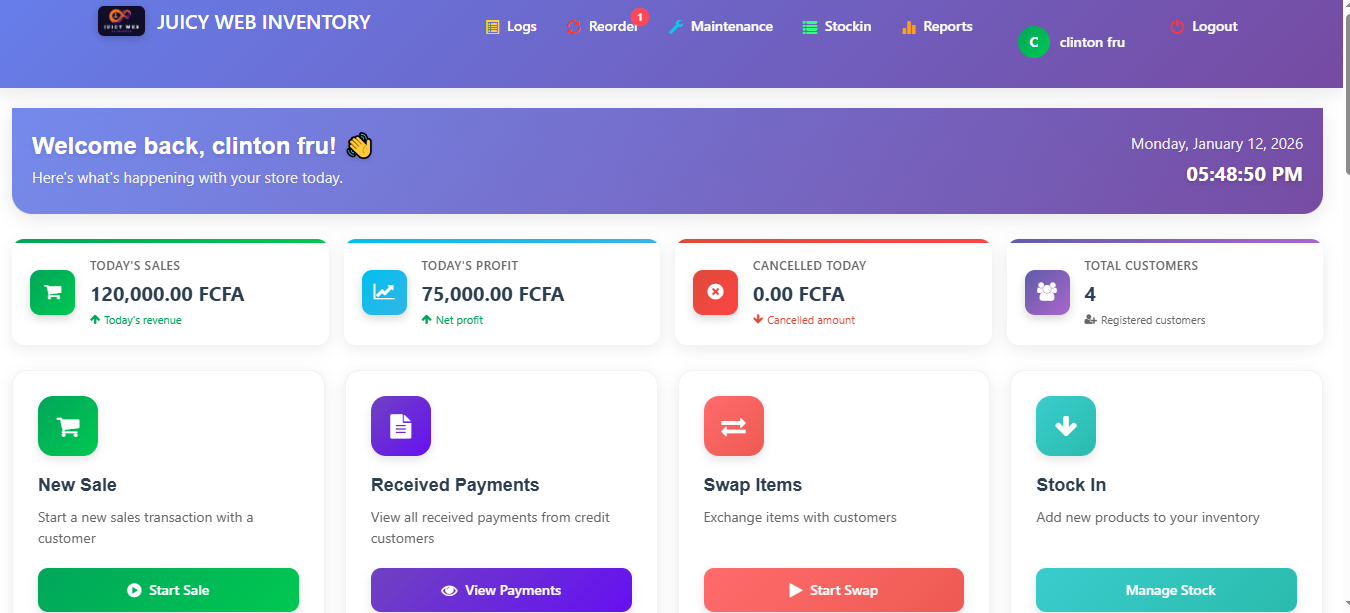
Today's Sales
Real-time total sales for the current day
Today's Profit
Net profit calculation updated live
Total Customers
Registered customer count and growth
Cancelled Sales
Track cancelled transactions
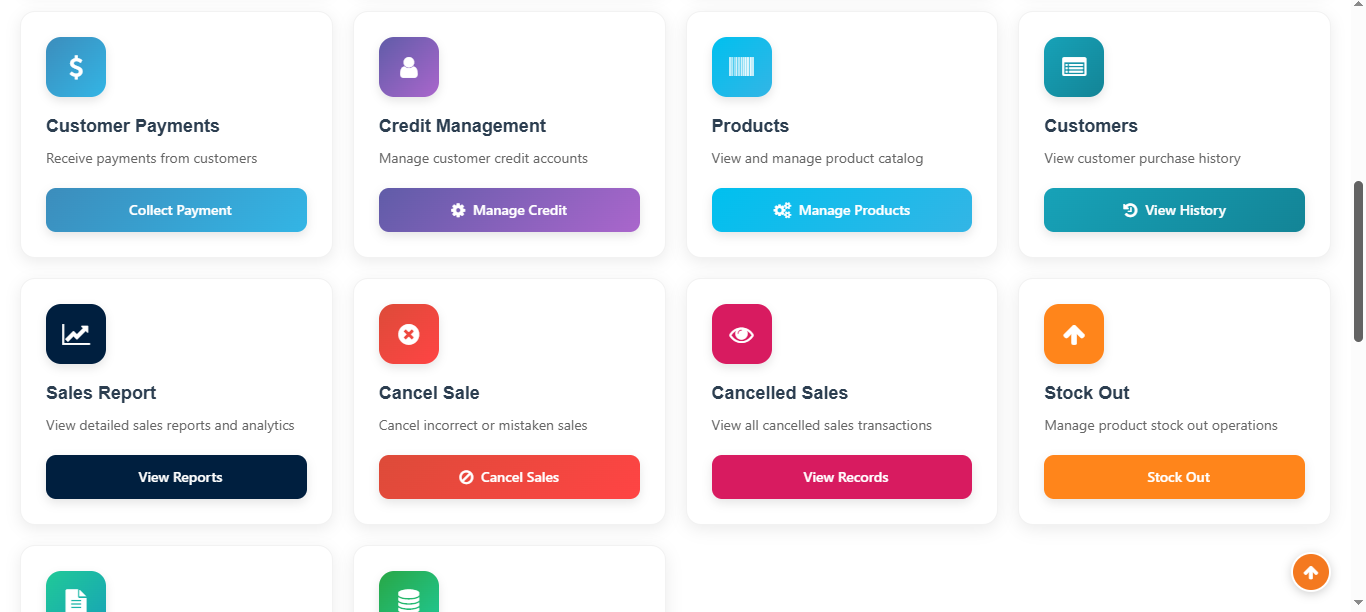
Quick Action Center
The dashboard includes quick action buttons for immediate access to frequently used functions:
Essential Quick Actions:
- New Sale - Start sales transaction instantly
- Received Payments - View customer payments
- Swap Items - Process product exchanges
- Stock In - Add products to inventory
- Customer Payments - Collect payments
- Credit Management - Manage credit accounts
Normal User Dashboard
Normal Users see a simplified version of the dashboard with only the functions they're permitted to use, primarily focused on sales processing.
Point of Sale (POS) System
The POS interface is designed for fast and efficient sales processing with customer-friendly features.
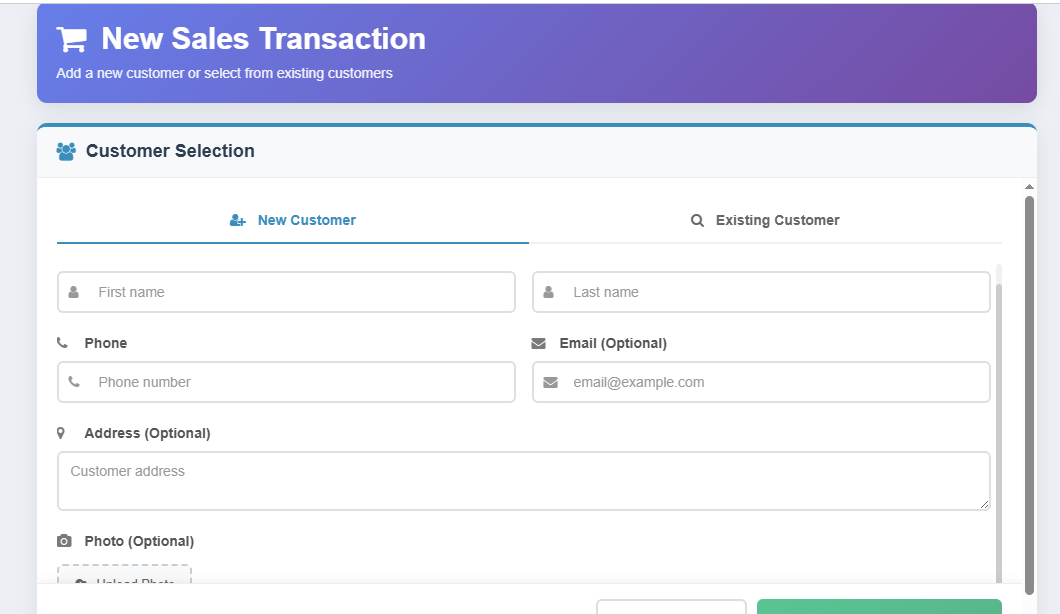
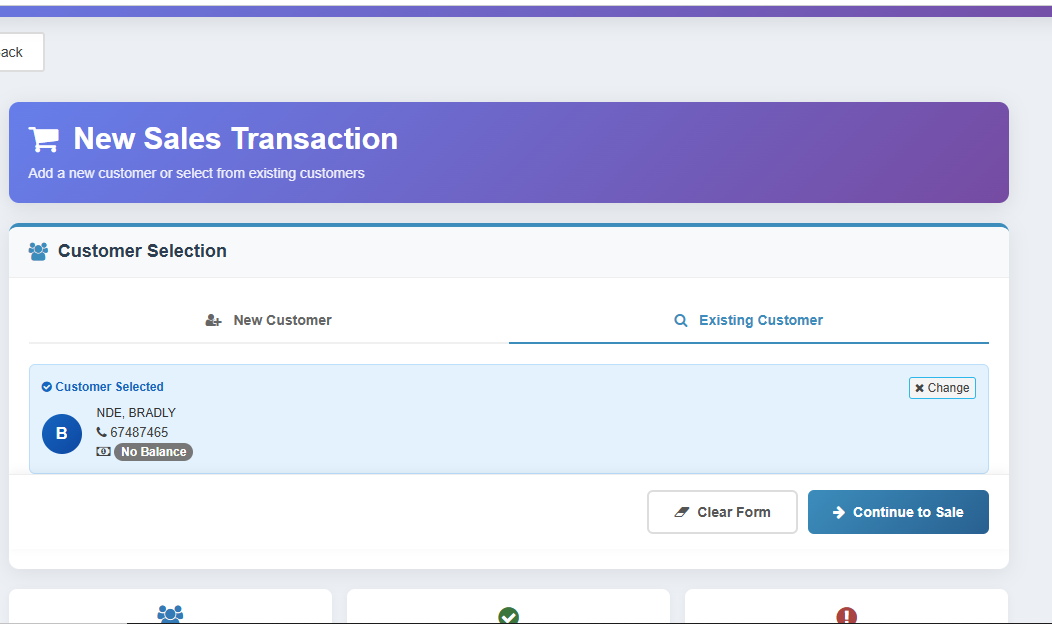
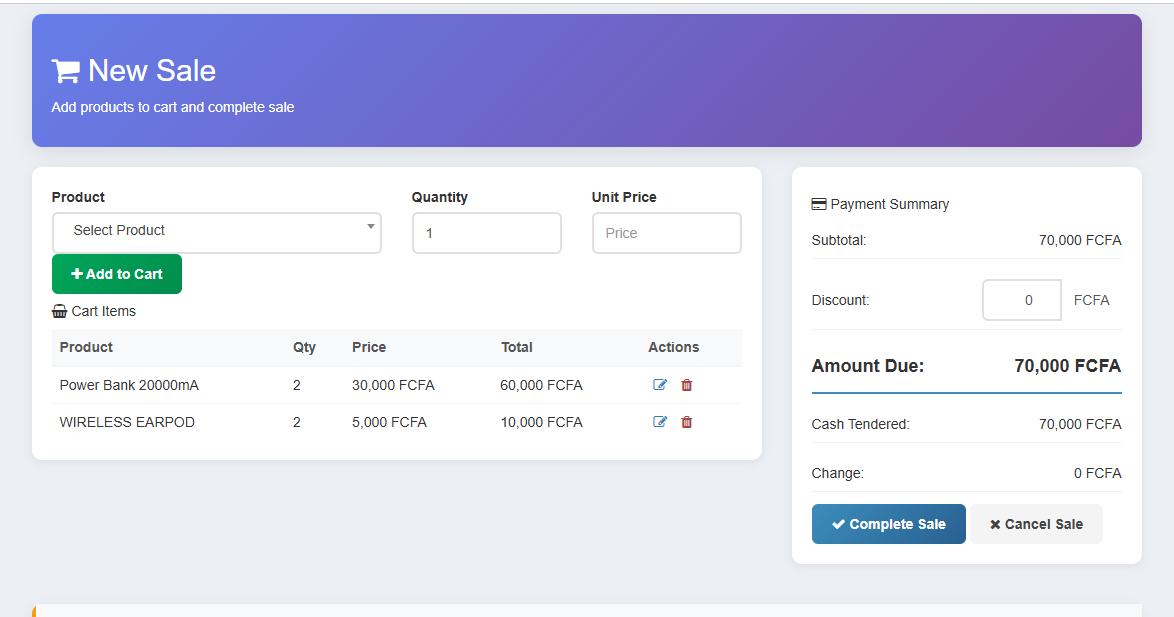
Step 1: Add Products to Cart
- Search products by name or barcode
- Select quantity and add to cart
- View running total in real-time
Step 2: Process Payment
- Enter amount received
- Calculate change automatically
- Process transaction
Step 3: Print Receipt
- Generate professional receipt
- Print or save as PDF
- Email receipt to customer (if configured)
Professional Receipts
UltimatePOS generates professional receipts with all transaction details.
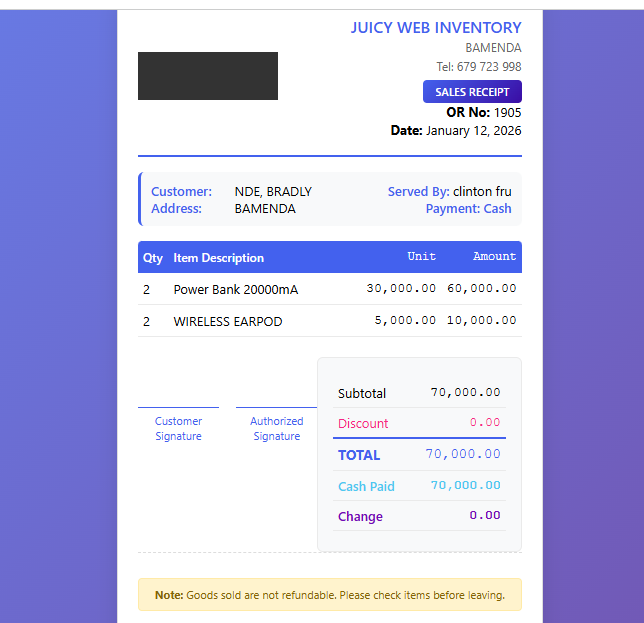
Receipt Customization
You can customize receipt templates to include your logo, contact information, and business details.
Cancel Sales (Staff Admin Only)
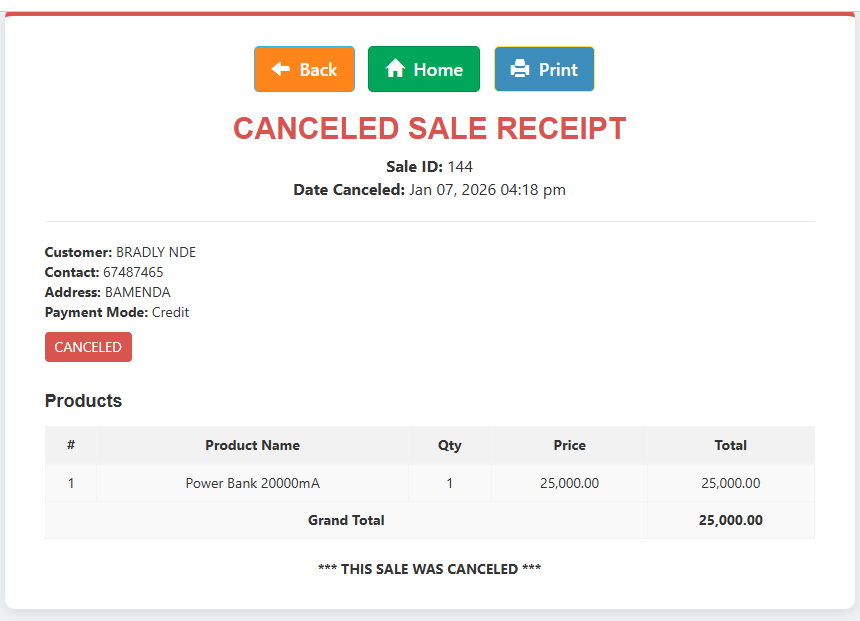
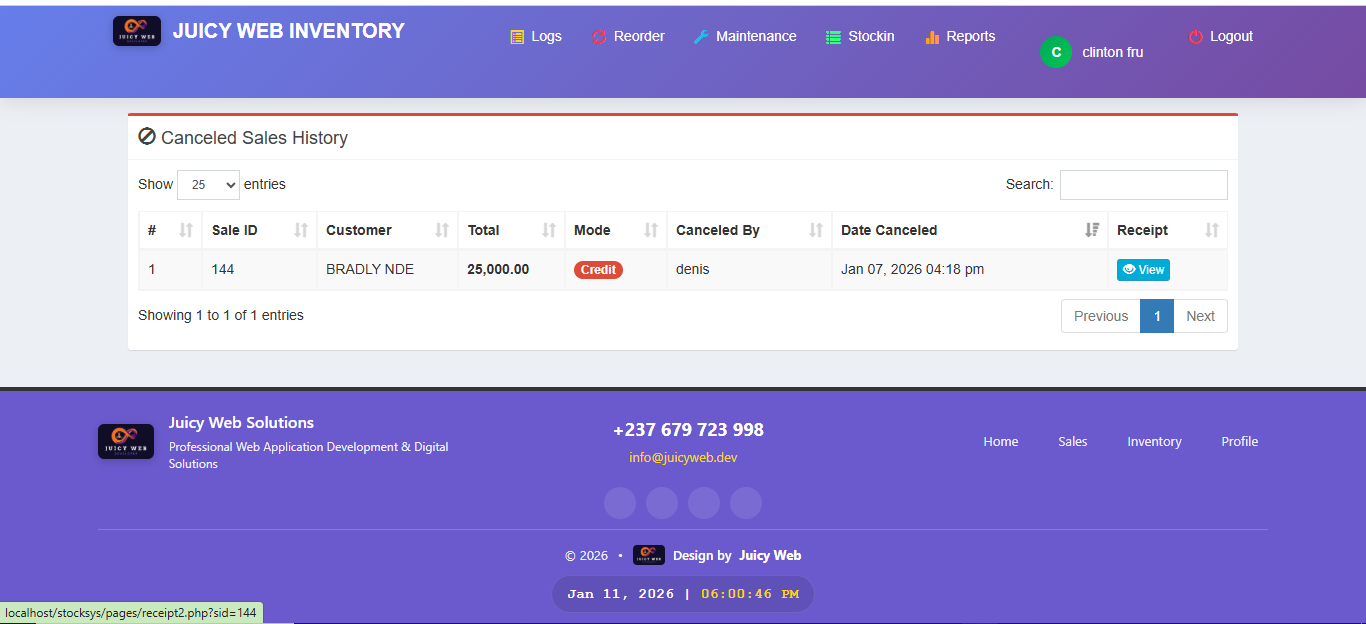
Sometimes sales need to be cancelled due to errors or customer requests. UltimatePOS handles this professionally.

Important Notes
- Cancelled sales are logged for audit purposes
- Stock levels are automatically adjusted
- Only Staff Admin users can cancel sales
- Normal Users cannot access this function
- Generate cancellation receipt for records
Complete Inventory Control (Staff Admin Only)
Manage your entire product catalog, track stock levels, and receive low stock alerts.
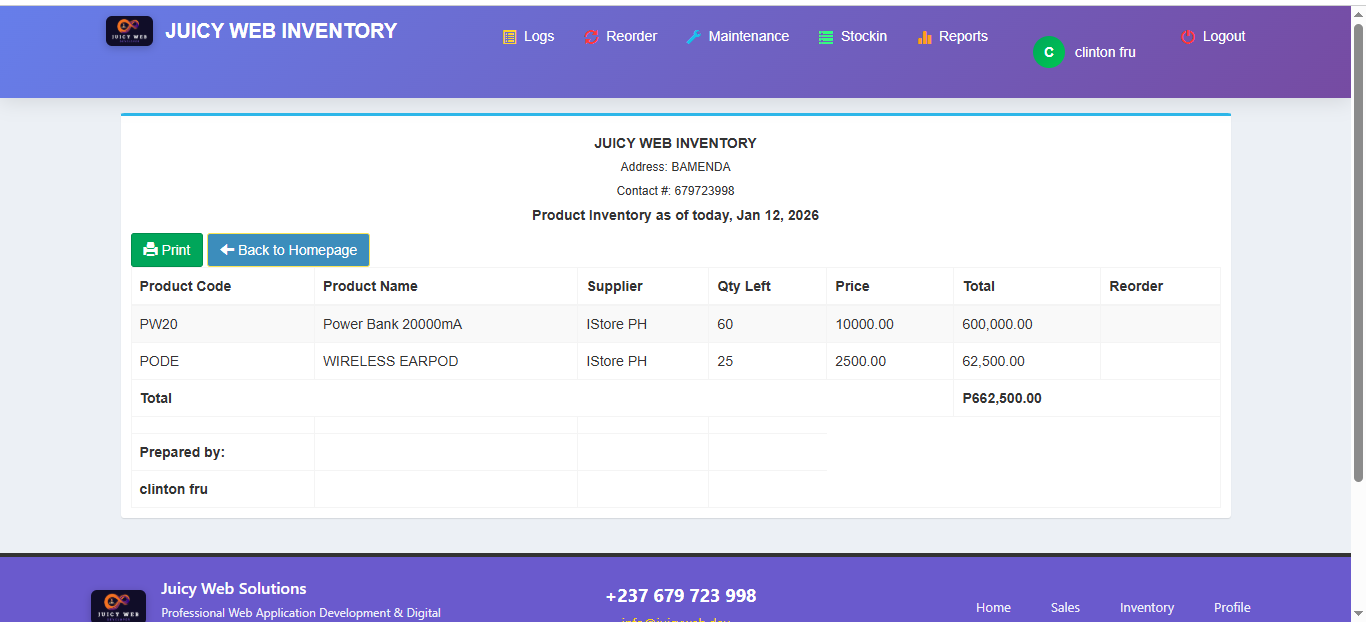
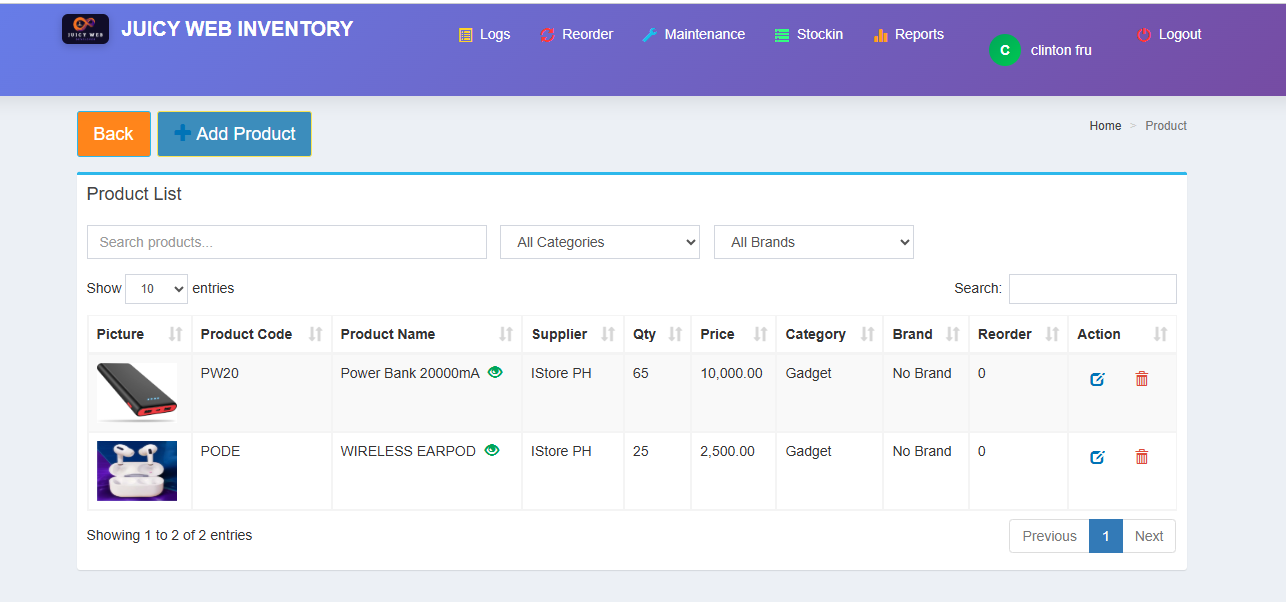
Product Catalog Management
- Add new products with images and descriptions
- Organize by categories and brands
- Set pricing, cost, and profit margins
- Track stock levels and reorder points
Stock In Operations (Staff Admin Only)
Add new stock to your inventory when you receive deliveries from suppliers.
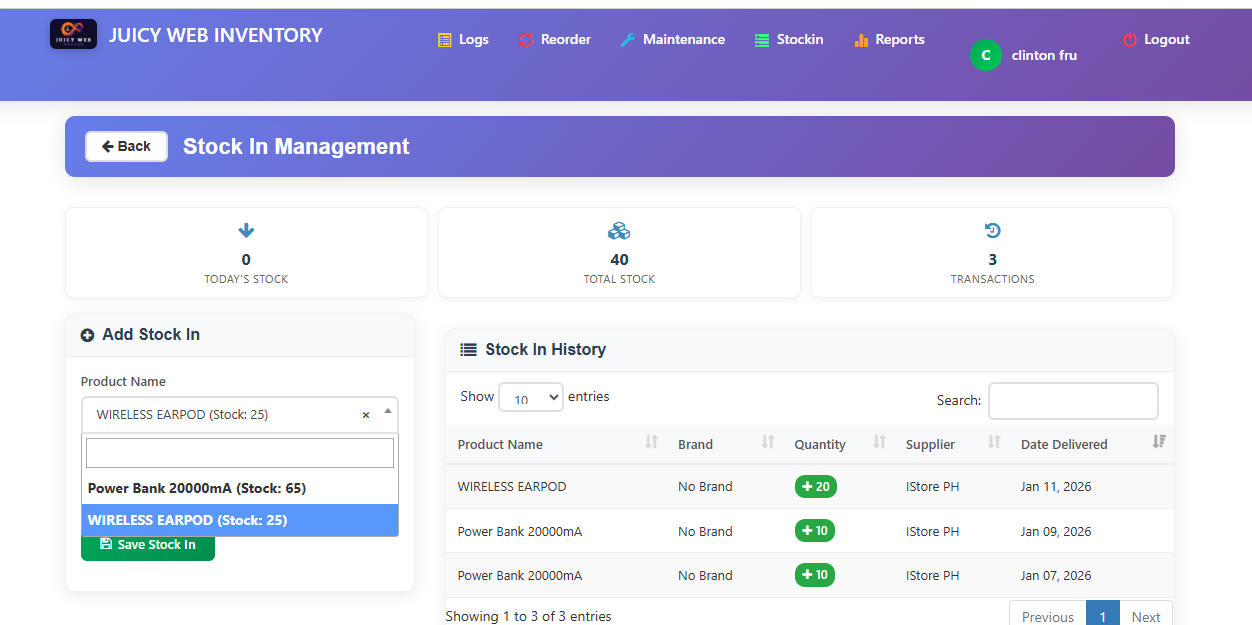
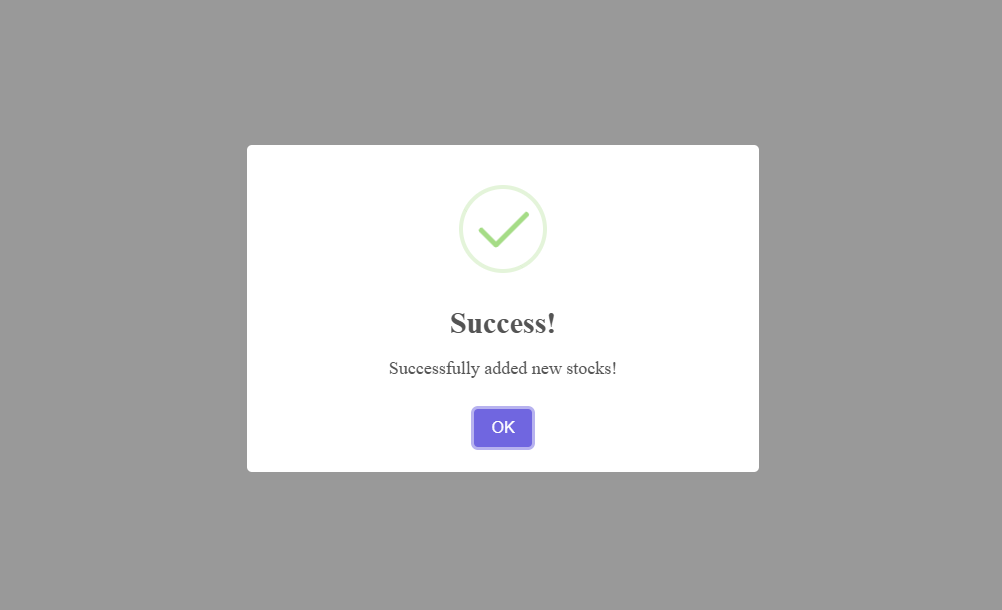
Stock In Process:
- Select product to restock
- Enter quantity received
- Input supplier information
- Update purchase cost if changed
- Confirm and update inventory
Stock Out Operations (Staff Admin Only)
Manage product reductions, returns to suppliers, or inventory adjustments.
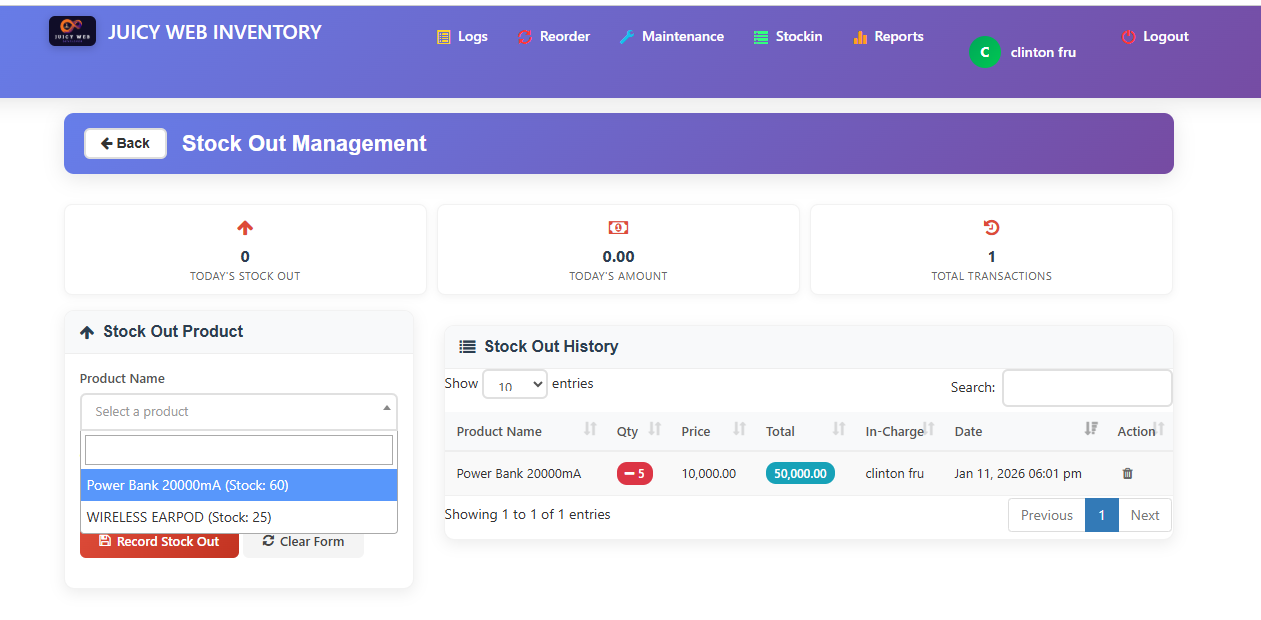
Stock Out Reasons:
- Product returns to suppliers
- Inventory adjustments and corrections
- Damaged or expired goods
- Theft or loss tracking
- Internal transfers between branches
Brand & Category Management (Staff Admin Only)
Organize your products efficiently with brand and category management.
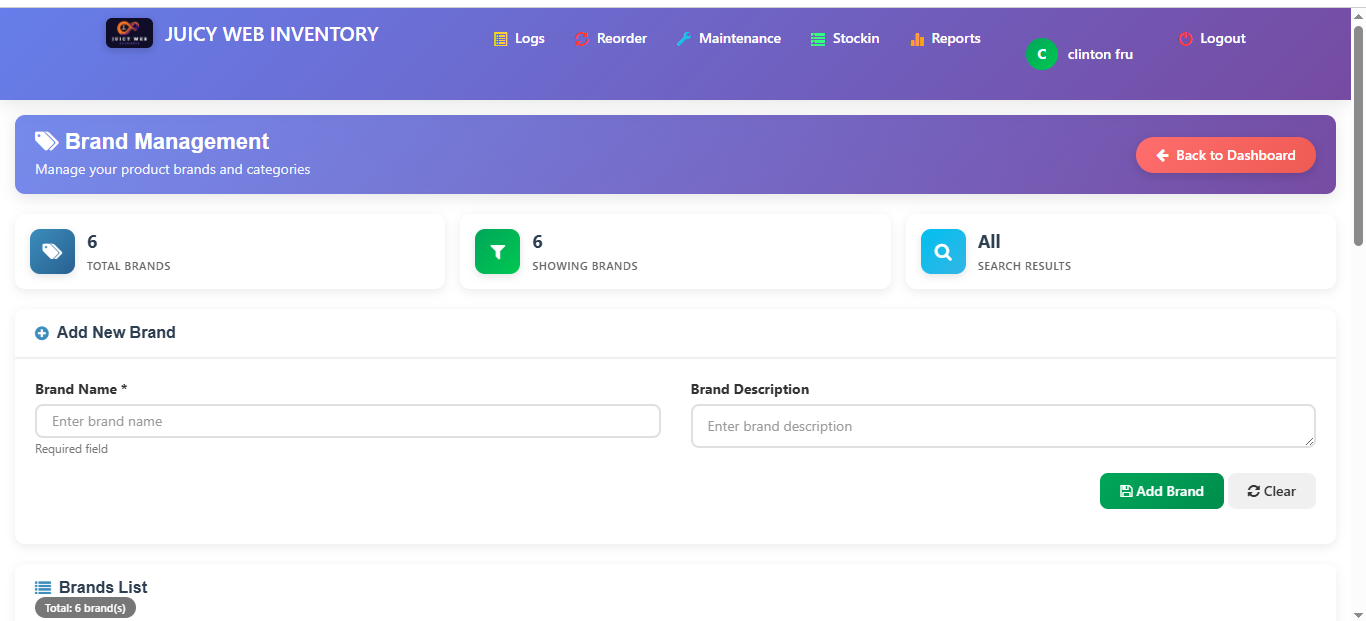
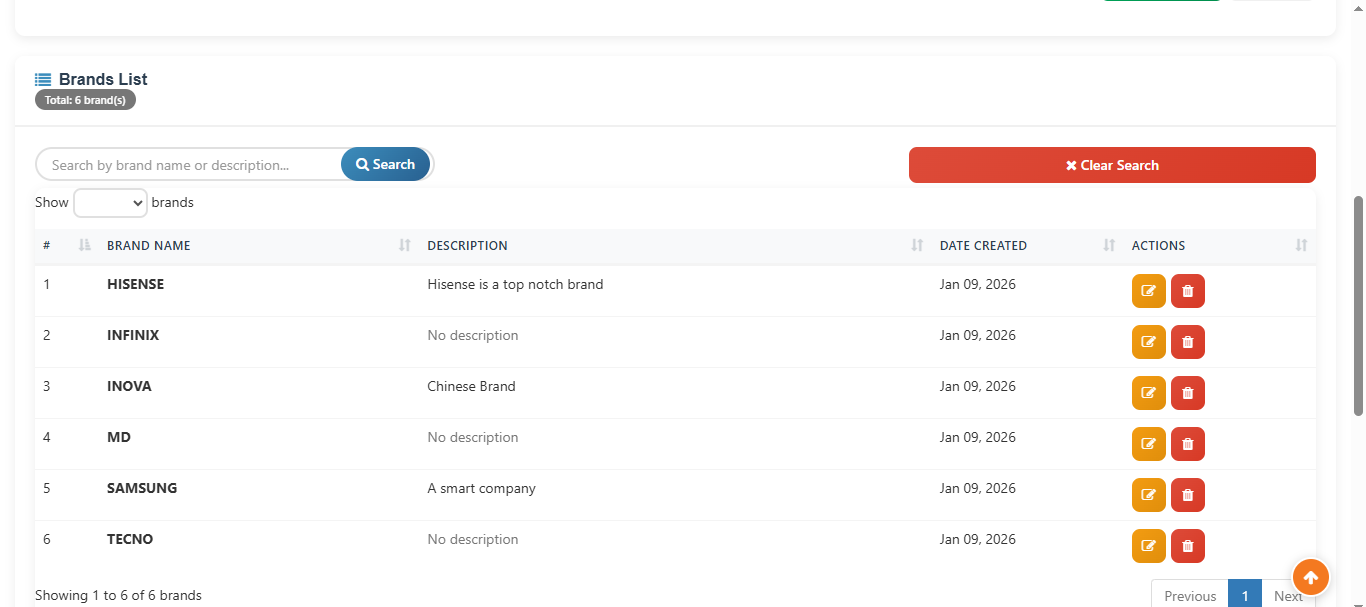
Organization Tips
- Create logical categories for easy navigation
- Use brands to group similar products
- Assign products to multiple categories if needed
- Regularly review and update categorization
- Use categories for targeted promotions
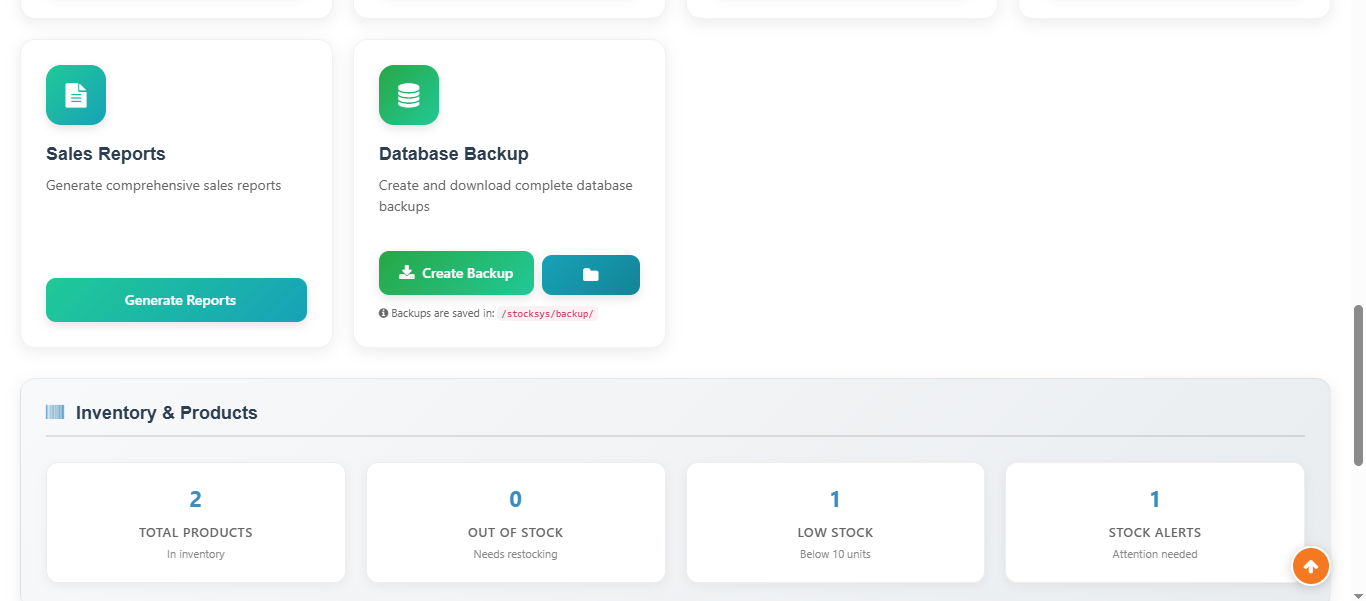
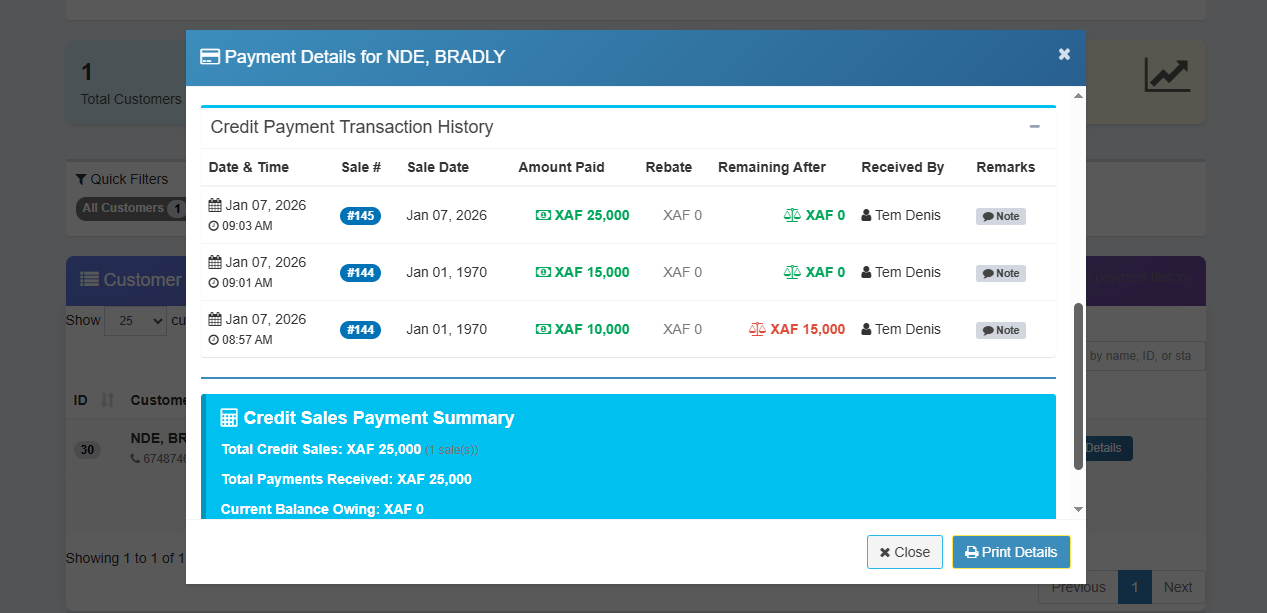
Recieved Payments From Credit Customers
View all received payments from credit customers, including:
Remaining balance owed, Cashier/user who received payment, Date and time of payment, Complete payment summary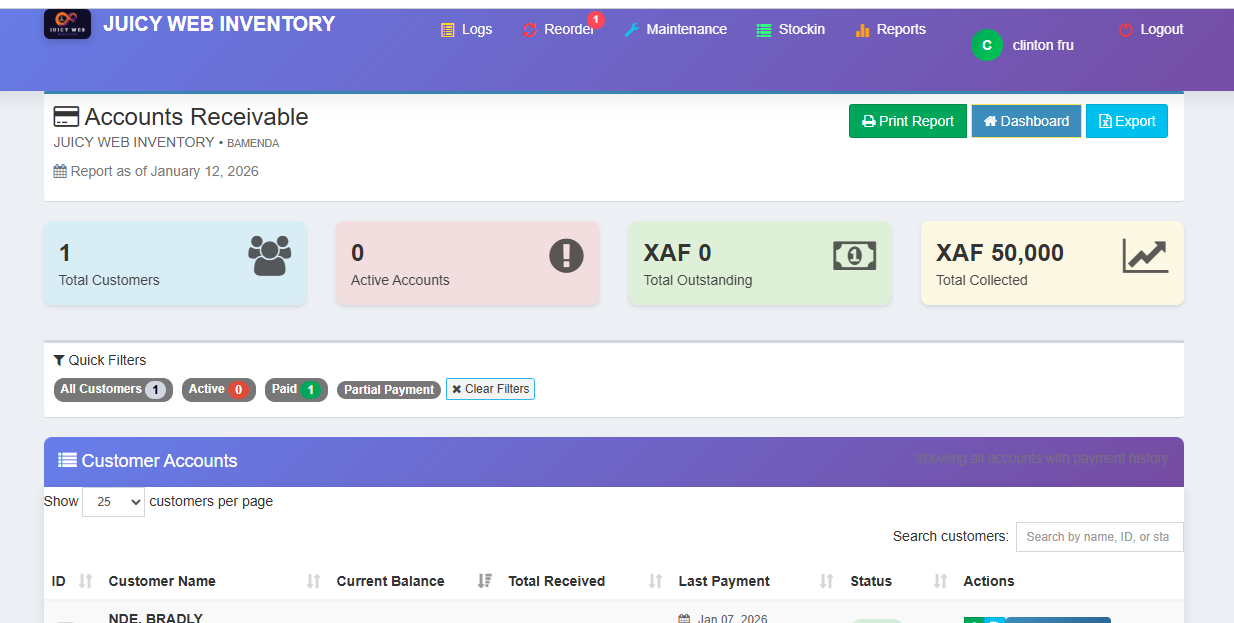

Customer Features:
- Customer Profiles - Complete contact information
- Purchase History - Track all transactions
- Credit Accounts - Set credit limits and terms
- Payment Tracking - Monitor account balances
- Communication Logs - Record customer interactions
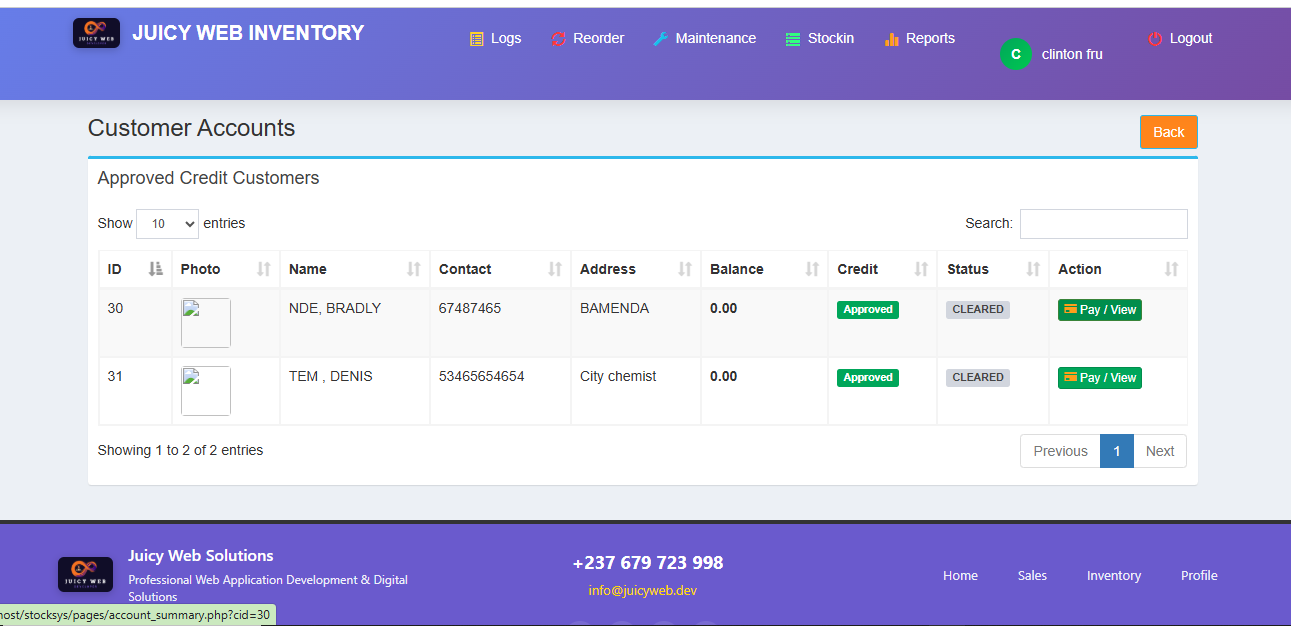
Credit Management System
Manage customer credit accounts efficiently with built-in tracking and reporting.
Credit Management Best Practices
- Set appropriate credit limits based on customer history
- Regularly review outstanding balances
- Send payment reminders before due dates
- Monitor credit risk and adjust limits as needed
- Keep detailed records of all credit transactions
Customer Ranking & Analytics
Identify your best customers and analyze purchasing patterns.
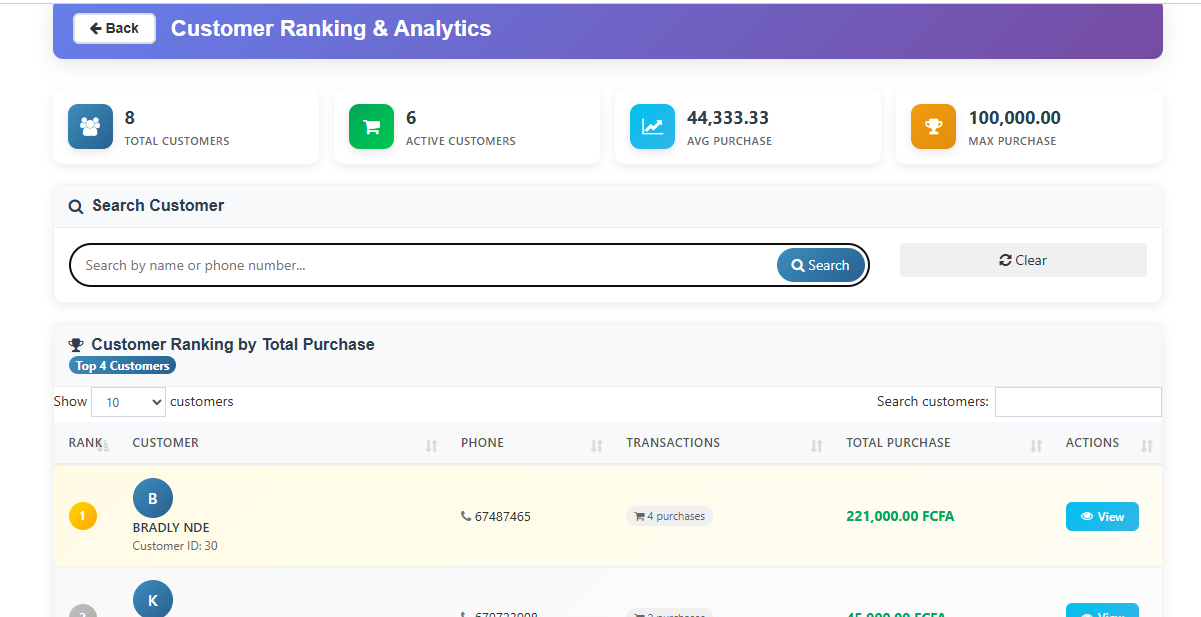
Ranking Criteria:
- Total Purchase Value - Overall spending
- Purchase Frequency - How often they buy
- Payment History - Credit payment reliability
- Customer Loyalty - Length of relationship
- Average Transaction Value - Spending per visit
Sales Reports
Generate detailed sales reports to analyze business performance.
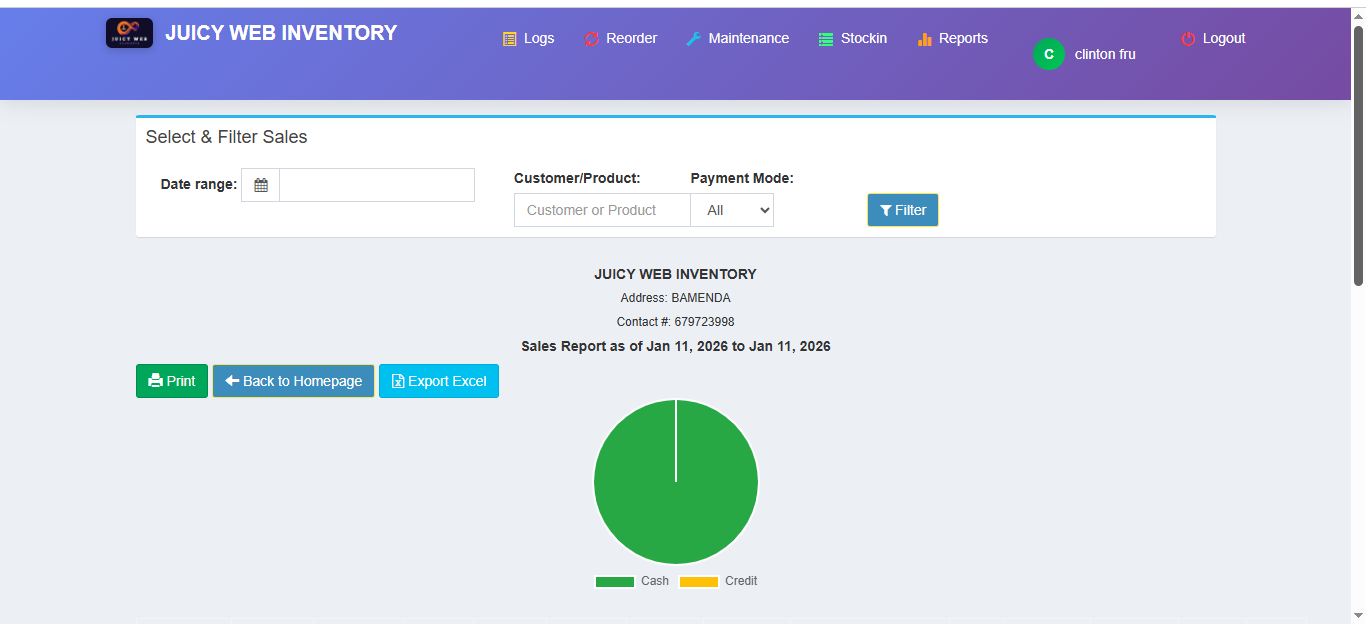
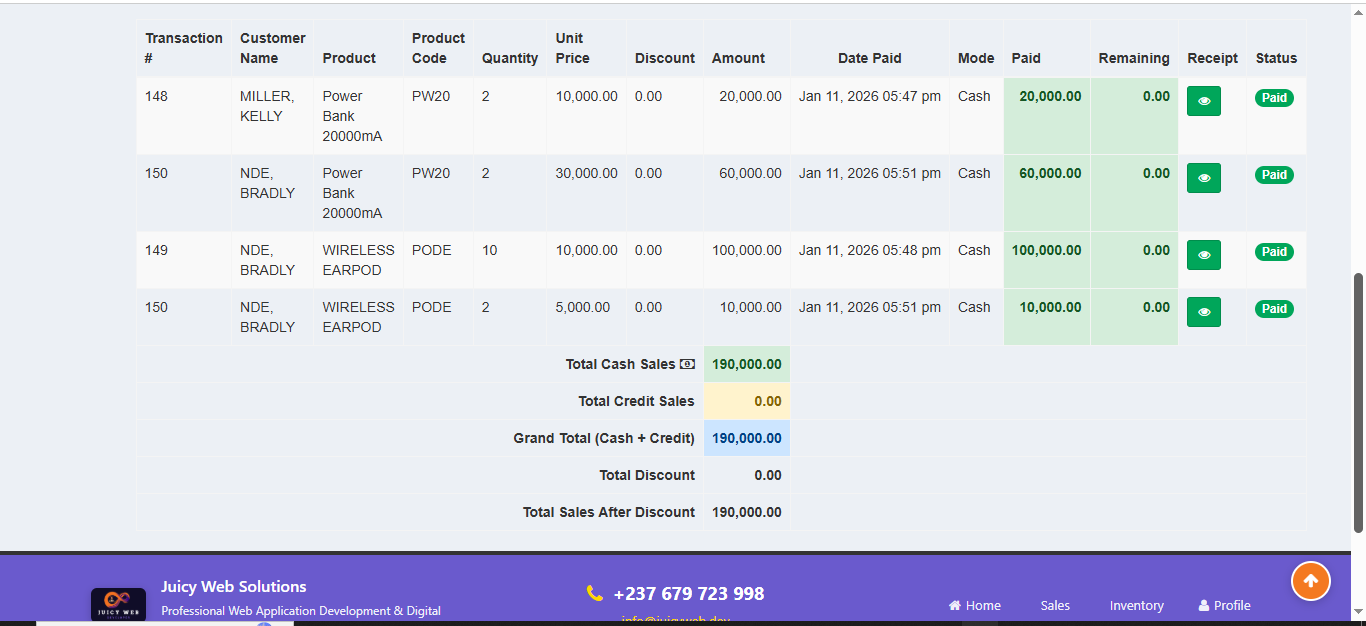
Available Sales Reports:
- Daily Sales Report - Today's transactions
- Weekly/Monthly Summary - Period performance
- Product Performance - Best/worst sellers
- Customer Sales Analysis - By customer
- Payment Method Report - Payment type analysis
- Profit Margin Analysis - Product profitability
- Sales Trend Analysis - Historical comparisons
Best Selling Products
Identify your top-performing products to optimize inventory and marketing.
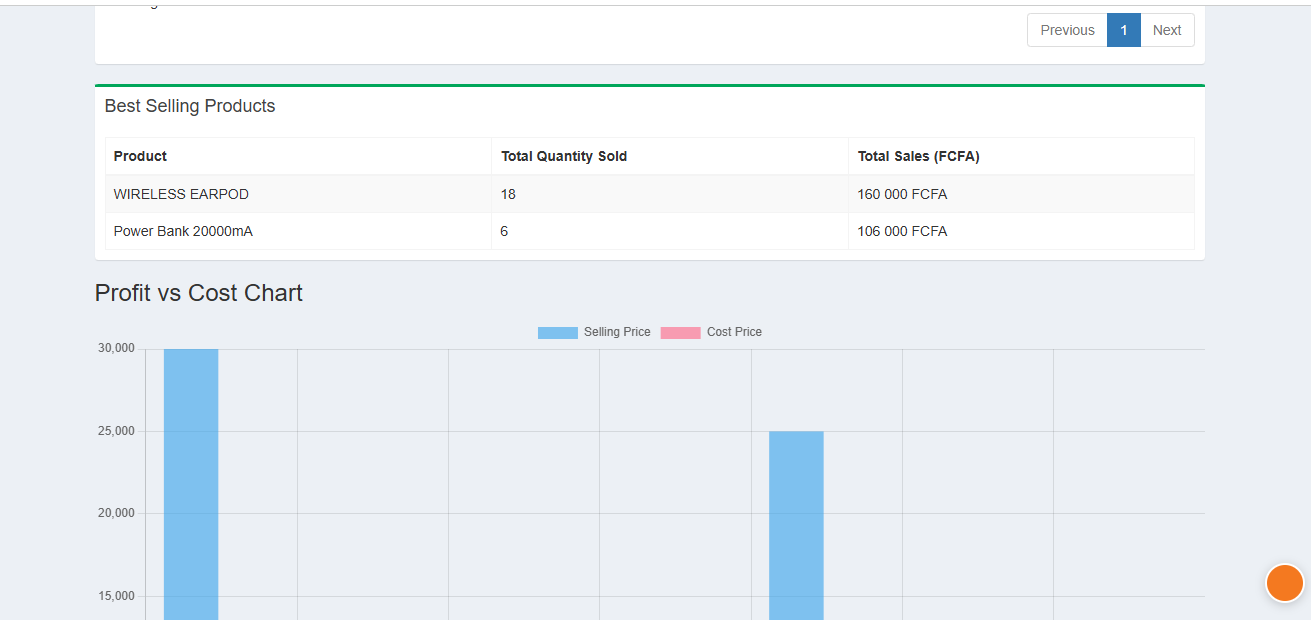
Using Sales Data Effectively
- Stock more of best-selling products
- Analyze seasonal trends in sales data
- Identify products needing promotion
- Adjust pricing based on demand
- Plan purchases based on sales velocity
- Identify slow-moving items for clearance
- Cross-sell opportunities analysis
Purchase History (Staff Admin Only)
Track complete purchase history for inventory planning and analysis.
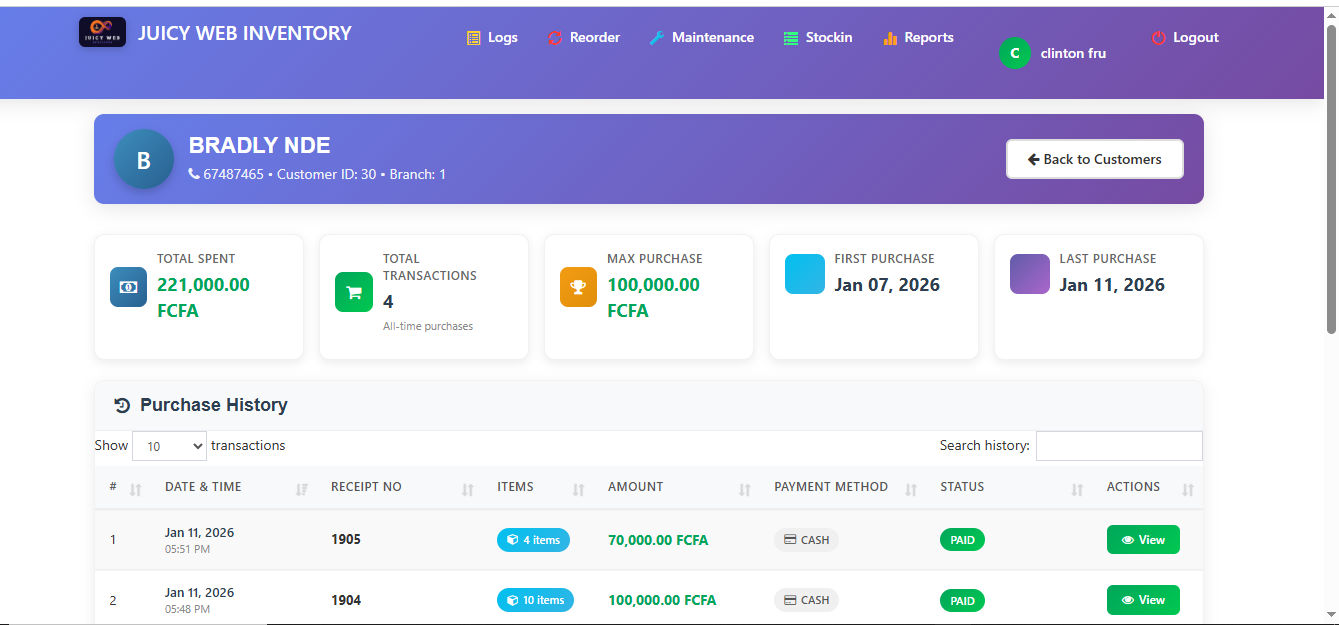
Purchase History Features:
- Supplier-wise purchase tracking
- Cost analysis over time
- Purchase frequency patterns
- Supplier performance evaluation
- Budget planning and forecasting
- Price comparison across suppliers
- Delivery time analysis
Item Swapping System (Staff Admin Only)
Handle product exchanges and replacements efficiently with the swap system.
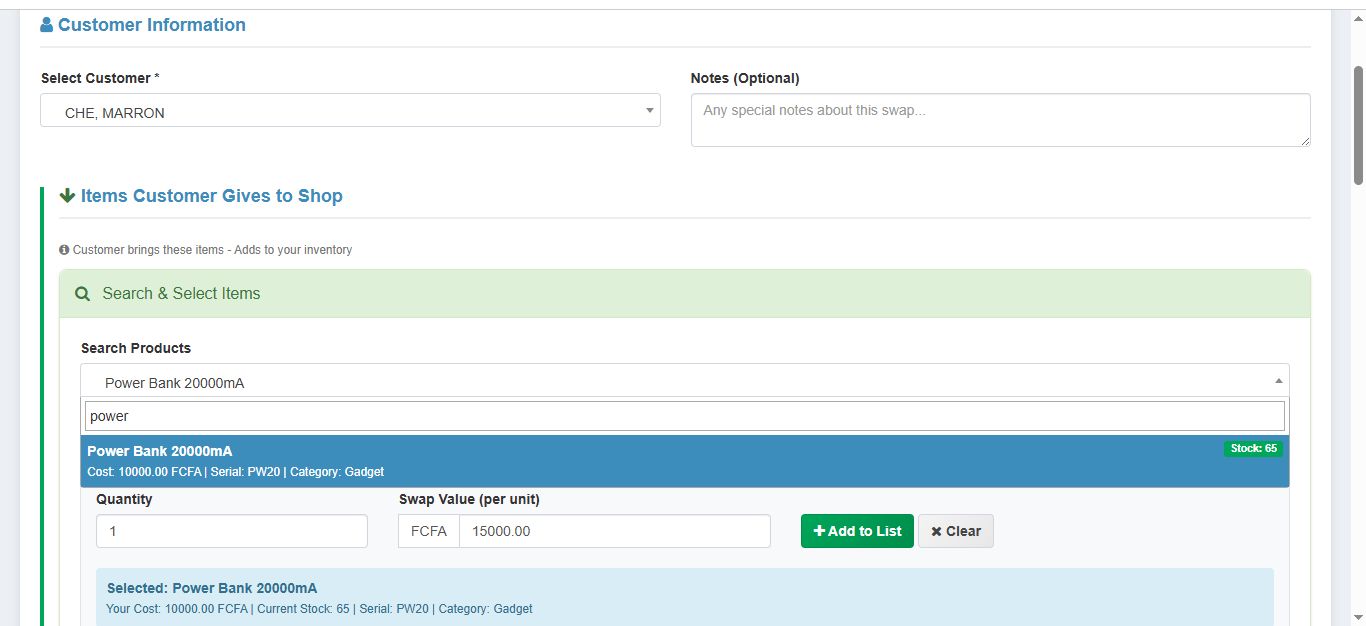
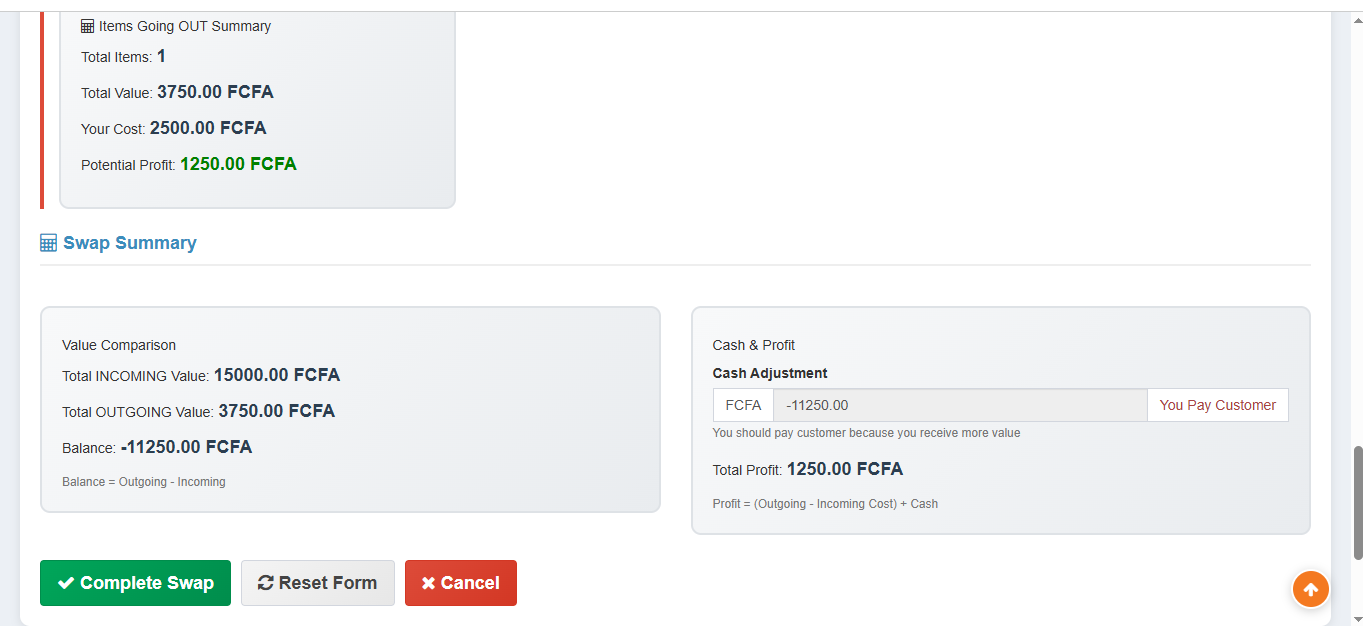
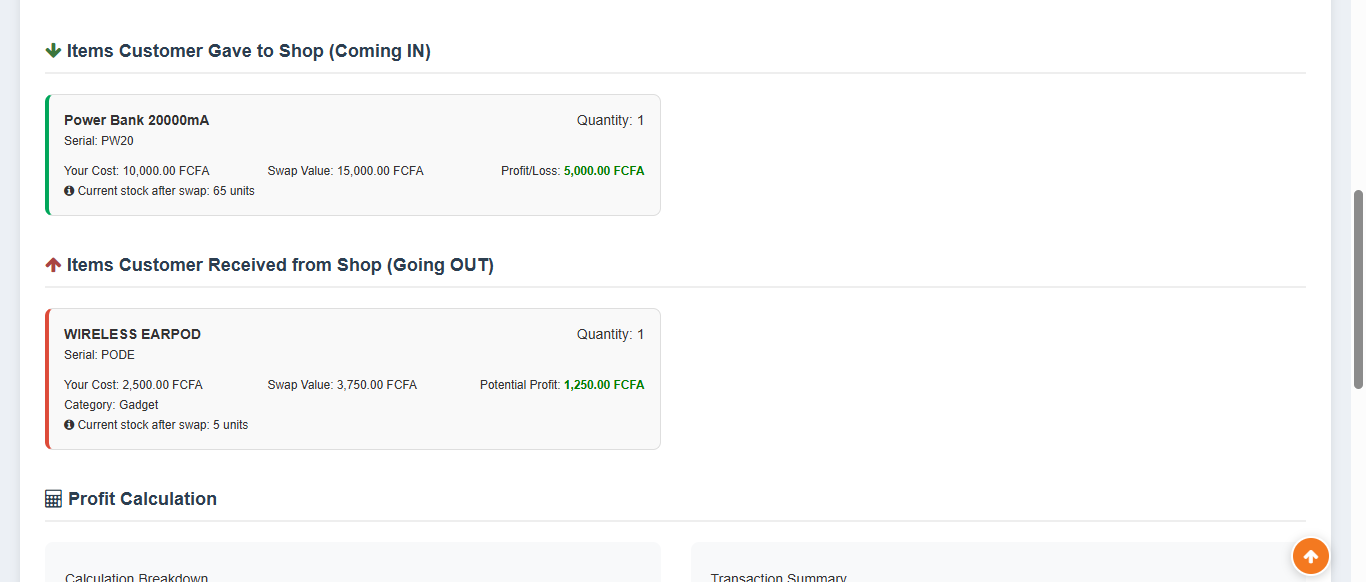
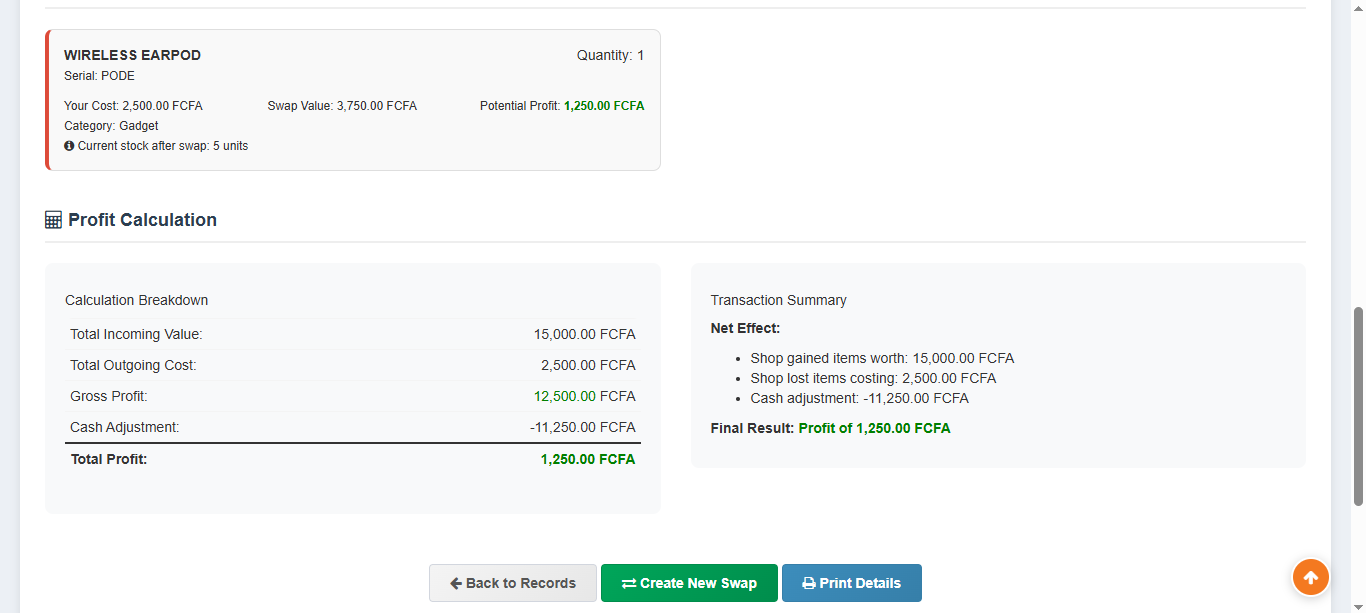
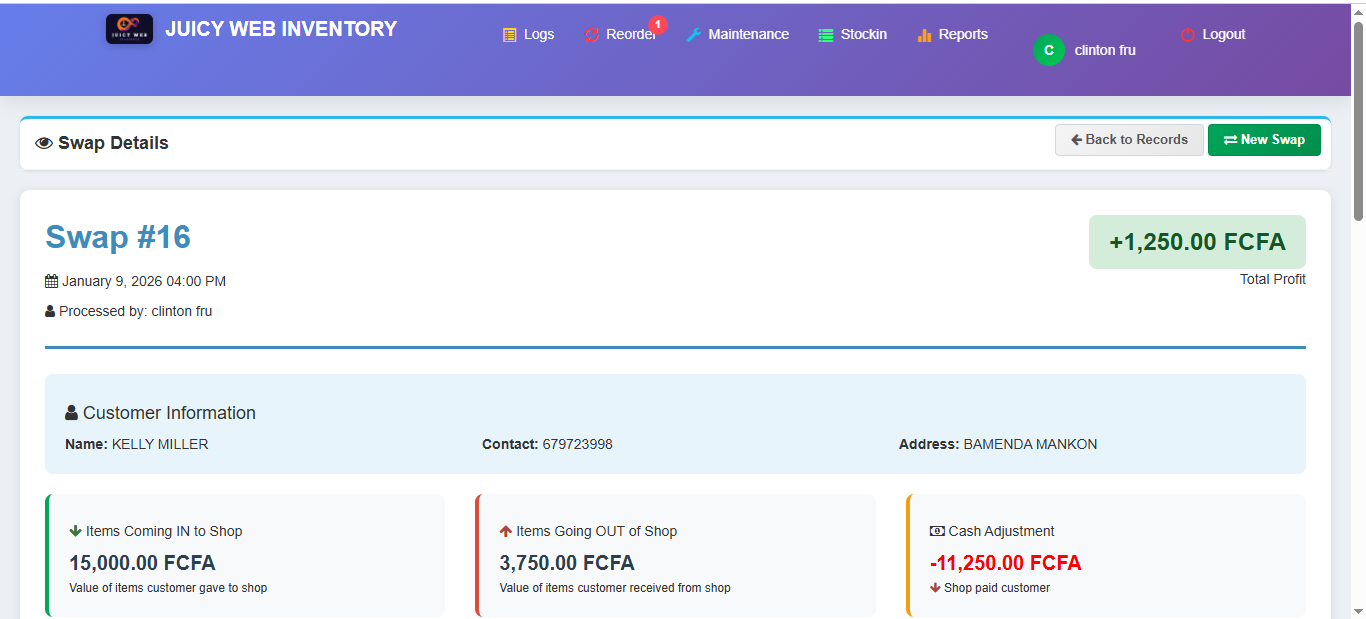
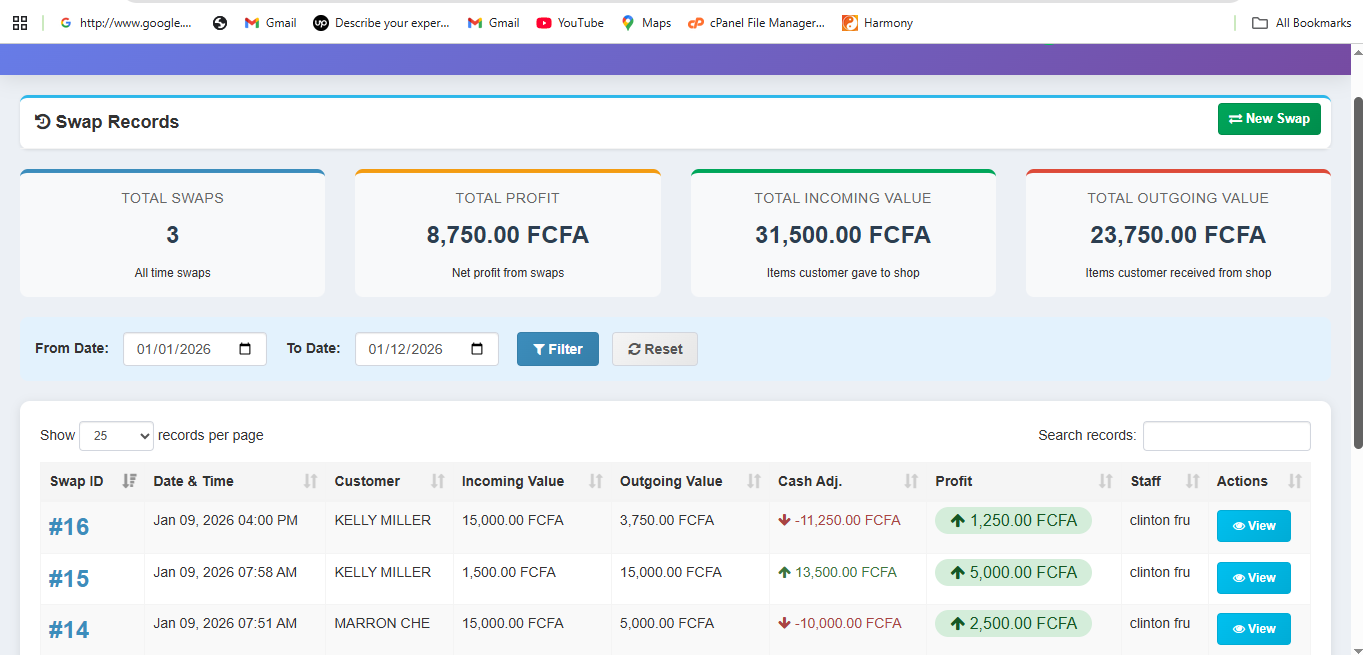
Swap Process:
- Select original sale transaction
- Choose items to return/exchange
- Select replacement items
- Calculate price differences
- Process swap with receipt
- Update inventory automatically
- Generate swap record for tracking
Swap Records Management
All swaps are recorded with complete details including original sale, exchanged items, price differences, and staff member who processed the swap. These records are essential for inventory accuracy and customer service tracking.
Activity History Log (Staff Admin Only)
Track all system activities for security, audit, and troubleshooting purposes.
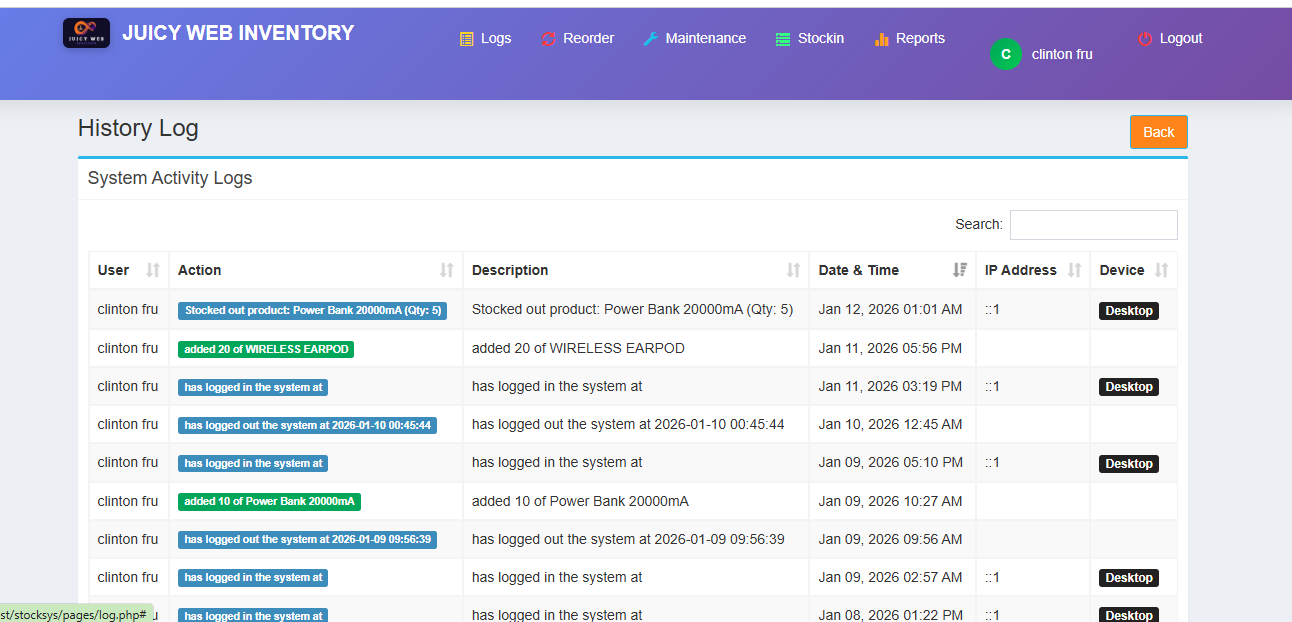
Logged Activities:
- User Activities: Logins, logouts, password changes
- Sales Operations: All transactions, modifications, cancellations
- Inventory Changes: Stock in, stock out, adjustments
- Customer Management: Profile updates, credit changes
- Financial Activities: Payments received, refunds processed
- System Operations: Backups, reports generated, settings changes
- Security Events: Failed login attempts, access violations
Audit Trail Importance
The activity log serves as a complete audit trail for your business. It helps with:
- Identifying errors or discrepancies
- Tracking staff performance and accountability
- Investigating customer complaints
- Compliance with business regulations
- Security monitoring and breach detection
- Inventory discrepancy resolution
User Profile Management
Staff Admin and Normal Users can manage their own profiles within the daily operations system.
Profile Management Features:
- Update personal information and contact details
- Change password (after initial login)
- View personal login history and activity
- Check assigned permissions and access levels
- Update notification preferences
- View assigned branches/locations
- Check shift schedules (if configured)
Password Security Best Practices
- Use strong passwords with at least 8 characters including letters, numbers, and symbols
- Change your password regularly (every 90 days recommended)
- Never reuse passwords from other systems or websites
- Avoid using personal information in passwords
- Consider using a password manager for secure storage
- Never share your password with anyone, including colleagues
- Log out after each session, especially on shared computers
Daily Operations Database Backup
Staff Admin users can create backups of daily operations data for safety and record-keeping.
Backup Process:
- Access backup feature from dashboard or administration menu
- Choose backup type (full database or specific data types)
- Select data range for partial backups (daily, weekly, monthly)
- Choose backup format (SQL, CSV, or both)
- Download backup file to secure location
- Verify backup file integrity by checking file size and date
- Store backups in multiple secure locations (local, cloud, external drive)
- Document backup details including date, type, and location
Important Backup Notes
- Daily operations backups only include business transaction data
- Full system backups and configuration backups are handled by Super Admin through the admin panel
- Regular backup schedule is essential for business continuity
- Test restore procedures periodically to ensure backup integrity
- Keep multiple backup versions (daily, weekly, monthly)
- Store backups offsite for disaster recovery
- Encrypt sensitive backup data for security
- Document backup and restore procedures for all staff
Recommended Backup Schedule
Daily: Transaction data backup (end of business day)
Weekly: Full business data backup (Sunday night)
Monthly: Complete archive backup (end of month)
Before Major Operations: Always backup before bulk updates, price changes, or inventory adjustments
Before System Updates: Complete backup before any system updates or modifications
Troubleshooting Guide
Common Issues & Solutions:
Cannot Login to System
- Check credentials: Username and password are case-sensitive
- Verify URL: Ensure you're using the correct login URL (yourdomain.com/stocksys)
- Account status: Contact Super Admin to verify account is active and not locked
- Browser issues: Clear browser cache and cookies, try different browser
- Network issues: Check internet connection and server accessibility
- System maintenance: Contact administrator to check if system is undergoing maintenance
Sales Not Processing Correctly
- Stock availability: Check if products have sufficient stock levels
- Customer credit: Verify customer credit limit if using credit system
- Permissions: Ensure user has sales processing permissions
- Correct role: Make sure you're logged in with correct user role
- System date/time: Verify system date and time settings are correct
- Cache issues: Clear browser cache or try different device
- Payment gateway: Check payment method configuration if using electronic payments
Reports Not Generating Properly
- Date range: Check date range selection is valid
- Permissions: Verify user has report generation permissions
- Data availability: Ensure data exists for selected period
- Filter settings: Review report filter settings and criteria
- System resources: Large reports may require more time or system resources
- Browser issues: Try generating smaller report subsets or different formats
- Export format: Try different export formats (PDF, Excel, CSV)
Inventory Issues
- Stock discrepancies: Run stock audit and reconciliation
- Negative stock: Check for unrecorded sales or incorrect stock entries
- Duplicate products: Search for and merge duplicate product entries
- Category issues: Verify product categorization is correct
- Pricing errors: Check cost and selling price calculations
- Supplier data: Verify supplier information and contact details
- Barcode issues: Test barcode scanning functionality
Contact Support
For technical assistance, installation help, bug reports, or customization requests:
JuicyWeb
Customization available
Support Hours & Response Times
Monday - Friday: 9:00 AM - 6:00 PM (GMT+1) - Response within 4 hours
Saturday: 10:00 AM - 2:00 PM (GMT+1) - Response within 8 hours
Sunday: Emergency support only - Response within 24 hours
Holidays: Support available with extended response times
Before Contacting Support
- Document the exact issue with screenshots if possible
- Note error messages exactly as they appear
- Record steps to reproduce the issue
- Check if issue occurs on multiple devices/browsers
- Note your system version and browser information
- Check if other users experience the same issue
- Review the user manual for possible solutions